WinRed made easy.
(Well, OK. Easier.)
Processing WinRed receipts creats a transaction scheme that is hard to balance. WinRed transmits to your bank account a deposit representing the total donations received, minus charges and reversals. Simple enough, except that the FEC wants the entire sum of receipts recorded as one "earmark", along with proper itemization of every donation and charge. But that doesn't exactly match what the bank sees.
The process:
Download the WinRed transaction, represented as a Comma-Separated Values (CSV) file that can be opened in Excel. Place it in a folder where the Filpac system can easily find it (use the Transfer subfolder).
Go to Import: WinRed Import and select the file just downloaded. Click Search and you should see it. Select the file and the system will validate.
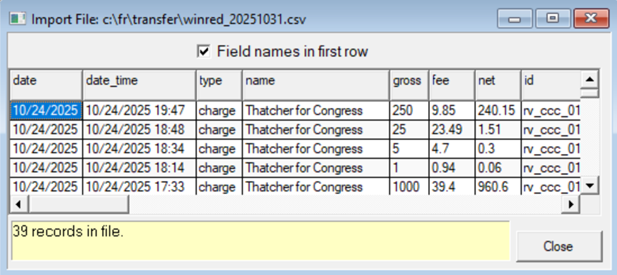
If you see a pop-up box with "field names in first row" checked, then everything looks good.
Go to the Import File tab on the right and you'll see what columns have been matched up. (Should be all of the necessary fields. If not, call us.)
The Receipt Code should already be filled in as WINRED
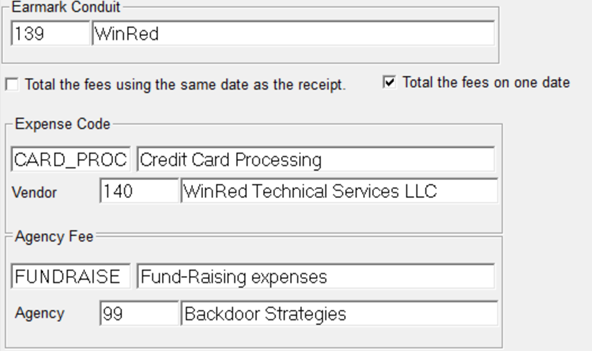
Under the Earmark tab, enter the WinRed master file record. It should be set up by default in Committee Setup (see below). Always best to check "don't choose a transaction" unless you've already entered it, in which case you'll select that transaction.
Under the Expense tab, all of these choices should be established by default in Committee Setup (see below). It's probably the best choice to choose "total the fees on this date", with the same date as the WinRed deposit date. The Expense Code and Vendor accounts for the WinRed processing fee and vendor, and the agency codes and vendors can be filled in if there's a second or third fee.
You're ready to go! Click Start.
The speedy process
If the defaults have been established in Committee Setup, then it's really fast.
- Download the WinRed transaction CSV to the folder last used. The system will remember.
- Select the File. Close the box.
- Go to the Expense tab and fill in the date.
- Check to ensure that all the defaults have been filled in. (If you're missing any, the system will warn you.)
- Click Start.
Verifying
Three reports:
1. Reports: Special Reports: Earmark Reconciliation
This gives a breakdown of each WinRed download/transaction.
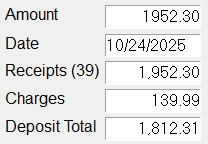
2. Daily Cash Report
This report will reflect the cash deposit from WinRed. It will equal the total donations, minus charges.
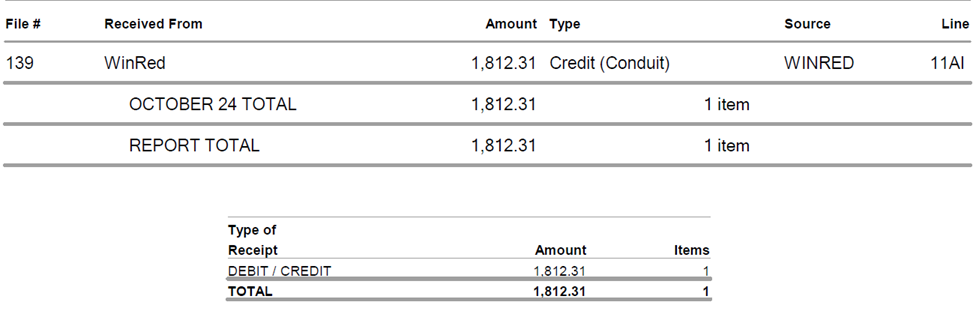
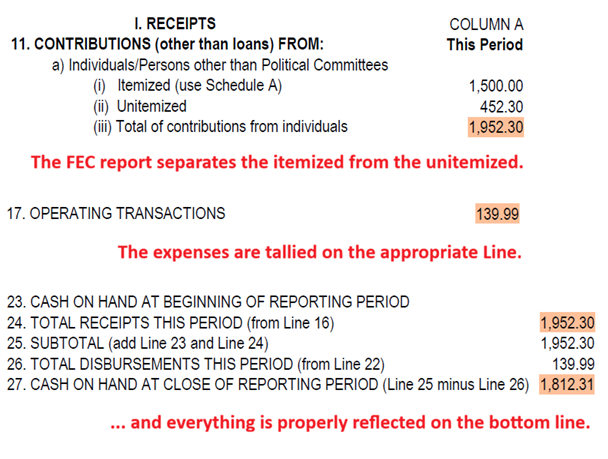
3. FEC Report
In the example below, the itemization has been worked out, the total donations are tallied and the ending cash will match the bank.
Defaults
(one-time setup)
Go to Setup: Committee Setup: Imports to establish the defaults.